
Here, let me show you how easy it is to use WPReactPanel inside your WordPress projects. Here in this documentation, I am going to assume you are using it in a WordPress Plugin.
1. Downloading WPReactPanel #
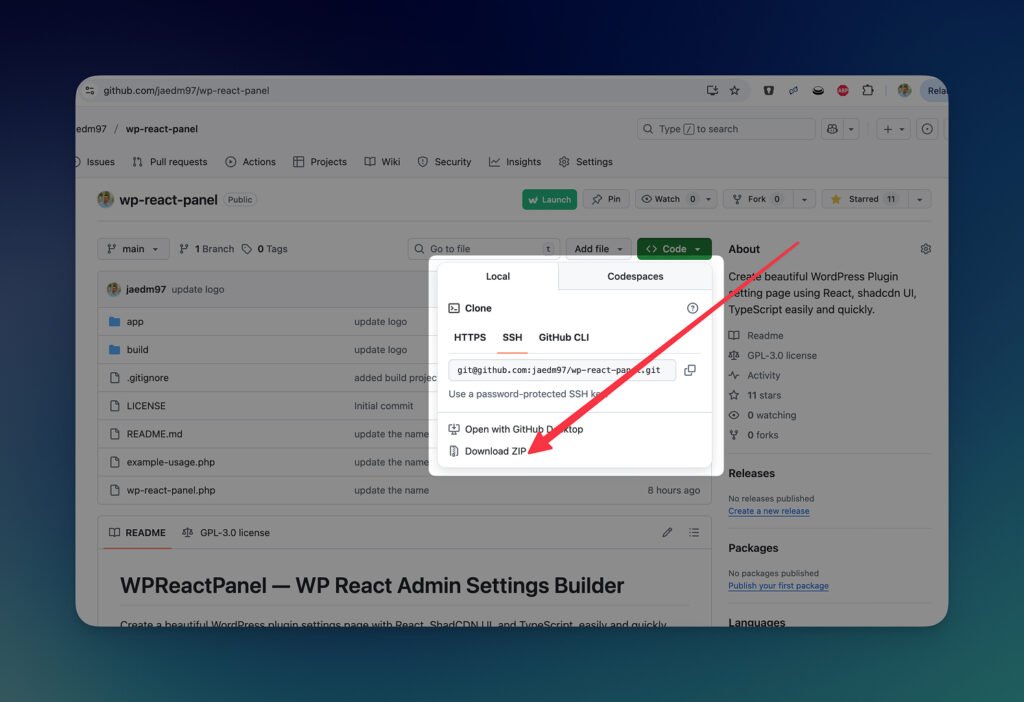
You can use the WPReactPanel directly in your existing or new projects with just the build file. Download the project file from the GitHub public repository
2. Adding it to your Plugin #
Once you download, copy the wp-react-panel directory inside your plugin’s root folder. As you are going to use the build version of the framework, you can delete the following files and folders:
- /app
- .gitignore
- .git
- README.md
- .example-usage.php
Just be aware that the build folder and wp-react-panel.php are safe and inside the wp-react-panel folder.
3. Include WPReactPanel Class #
Now, inside your plugin’s main file or wherever you want to include this framework, do it. Here is an example code snippet to include inside your plugin.
require_once PLUGIN_DIR . 'wp-react-panel/wp-react-panel.php';4. Define Page Data #
Configure the settings page appearance and menu structure:
$page_data     = array(
	'page_title' => 'My Settings Page',
	'menu_title' => 'My Settings',
	'capability' => 'manage_options',
	'menu_slug'  => 'my-settings',
	'icon'       => 'dashicons-admin-generic',
	'position'   => 20,
	'configs'    => array(
		'show_tabs'       => false,
		'wrapper_classes' => 'my-plugin-wrapper',
		'page_width'      => 'medium', // mini ~ 2xl | small ~ 4xl | medium ~ 5xl | large ~ 6xl | extra ~ 8xl
	),
);
5. Define Settings Data Structure #
Create your settings structure with tabs, sections, and fields. You can get the fields’ details from another part of this documentation.
$settings_data = array(
	'tab_slug' => array(
		'name'     => 'Tab Name',
		'sections' => array(
			'section_slug' => array(
				'id'     => 'section_slug',
				'name'   => 'Section Name',
				'desc'   => 'Section description',
				'fields' => array(
					// Field definitions here
				),
			),
		),
	),
);
6. Initialise WPReactPanel #
Now it’s easy to initialise the framework in your plugin. Here is a sample code based on the above steps.
$admin_settings = new WPReactPanel( $page_data, $settings_data, PLUGIN_URL, PLUGIN_VERSION );7. Enjoy using different Fields #
You should now see an admin menu in your WordPress dashboard. You can also enjoy different field types on your plugin’s settings page.


